
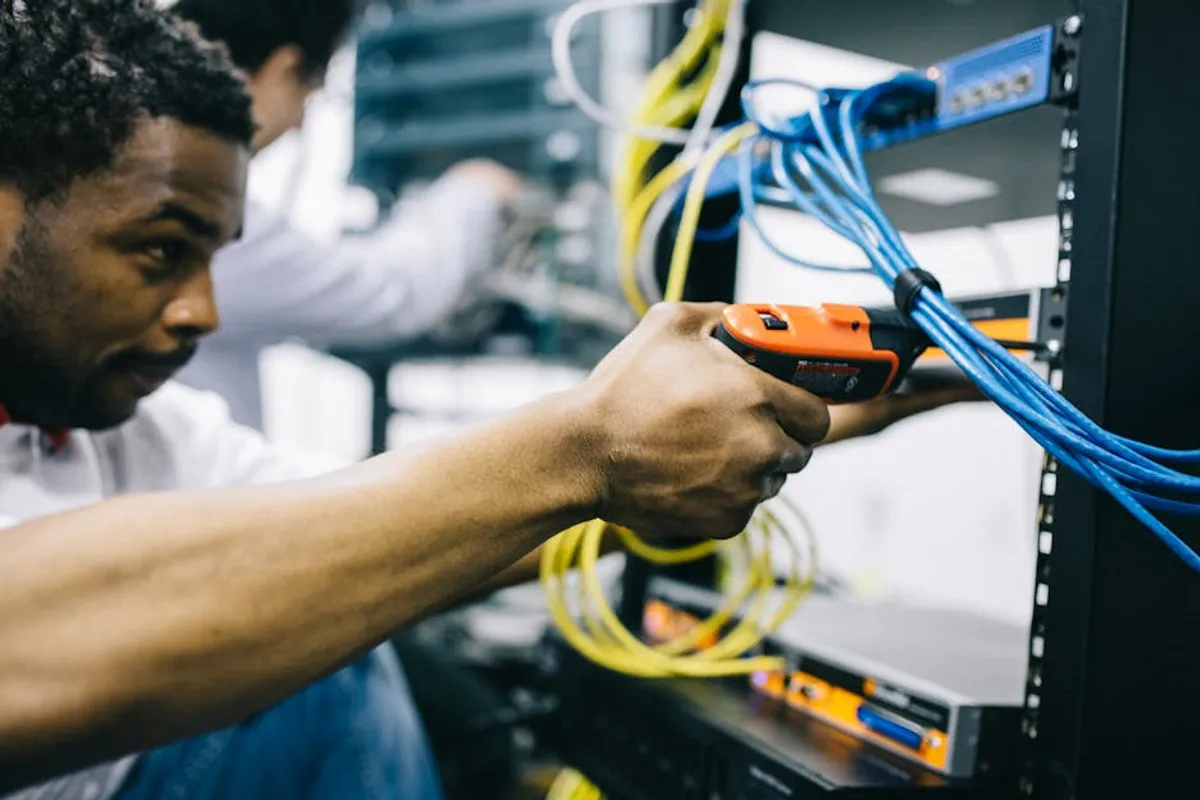
Modern technology, while indispensable, often presents unexpected challenges. For many non-technical users, a sudden computer freeze, internet outage, or software glitch can feel like an insurmountable obstacle, leading to immediate frustration and calls for assistance. This isn't always necessary. A structured, logical approach to troubleshooting can resolve a significant percentage of common tech problems without requiring expert intervention. This checklist provides a methodical framework, empowering you to identify, diagnose, and often fix issues independently, saving time and reducing reliance on external support.
The Foundation: Basic Checks First
Before diving into complex solutions, always start with the most fundamental and often overlooked steps. These checks address the majority of intermittent issues.
Power and Connections
Ensure all devices are properly plugged into a power source and that the power outlet itself is functional. For laptops, confirm the charger is securely connected and the battery isn't depleted. Check all cables – USB, HDMI, Ethernet – to verify they are firmly seated at both ends. A loose connection is a frequent culprit for non-responsive devices or display issues.
Restart Everything
This is often dismissed as a cliché, but a full restart (power cycling) clears temporary glitches, refreshes memory, and reinitializes software processes. For computers, perform a full shutdown and then power it back on. For routers, modems, printers, or other peripherals, unplug them from power for 30 seconds, then plug them back in and allow them to fully boot up.
Check for Updates
Outdated software or operating systems can introduce bugs and compatibility issues. Verify that your operating system (Windows, macOS, iOS, Android) and critical applications are running the latest versions. Automatic updates are generally recommended, but a manual check can confirm if any pending installations are waiting. Updates often include bug fixes that directly address common problems.
Diagnosing Software Glitches
When an application or program isn't behaving as expected, the issue often resides within the software itself.
Close and Reopen Applications
If a single application is frozen or unresponsive, force-quitting and restarting it can resolve the issue. On Windows, use Task Manager (Ctrl+Shift+Esc) to end the process. On macOS, use Force Quit Applications (Cmd+Option+Esc). This clears the application's current state and allows it to reload fresh.
Clear Cache and Cookies
For web browsers experiencing slow performance, loading errors, or display problems, accumulated cache and cookies can be the cause. Clearing these temporary files forces the browser to fetch fresh data from websites. This is typically found in the browser's settings under "Privacy and Security" or "History."
Test in a Different Browser or Application
If a problem occurs only within a specific web browser, try replicating it in another browser (e.g., if Chrome is failing, try Edge or Firefox). Similarly, if a file isn't opening in one application, attempt to open it with a compatible alternative. This helps determine if the issue is with the application itself or the content/system.
Internet and Network Issues
Connectivity problems are among the most common and disruptive tech frustrations. A systematic approach helps pinpoint the source.
Verify Wi-Fi or Ethernet Connection
Confirm your device is connected to the correct Wi-Fi network and that the signal strength is adequate. If using an Ethernet cable, ensure it's securely plugged into both your device and the router/modem. Check for any "airplane mode" or Wi-Fi toggle switches on your device that might be inadvertently activated.
Router and Modem Reset
A full power cycle of your router and modem can resolve many internet connectivity issues by refreshing the network connection with your internet service provider. Unplug both devices from their power sources for at least 30 seconds, then plug the modem back in first. Wait for it to fully boot up (usually indicated by stable lights), then plug in the router and wait for it to stabilize.
Pro Tip: When resetting network equipment, always power cycle the modem *before* the router. The modem establishes the connection to your internet service provider, and the router then distributes that connection to your devices. Resetting them in the correct order ensures a clean re-establishment of the entire network chain.
Test with Other Devices
If your primary device cannot access the internet, try connecting another device (e.g., a smartphone, tablet, or another computer) to the same network. If other devices can connect, the problem is likely with your primary device. If no devices can connect, the issue is almost certainly with your router, modem, or internet service provider.
Peripheral and Hardware Concerns
External devices like printers, keyboards, or external drives can cause issues if not properly connected or configured.
Reconnect Peripherals
For any peripheral that isn't working, physically disconnect it from your computer and then reconnect it. This can force the operating system to re-detect the device and re-establish its connection. Try different USB ports if available, as a faulty port can sometimes be the cause.
Check Device Manager (Windows) or System Information (Mac)
These system tools provide insights into whether your computer recognizes connected hardware. On Windows, search for "Device Manager" to see a list of hardware and any error indicators (e.g., yellow exclamation marks). On macOS, go to Apple menu > About This Mac > System Report to view connected USB devices, storage, and more. If a device isn't listed or shows an error, it indicates a driver or hardware problem.
Gathering Information for Support
If your troubleshooting efforts don't resolve the issue, you'll likely need to contact technical support. Providing clear, concise information will significantly speed up their ability to assist you.
Document the Problem
- What exactly is happening? (e.g., "The application crashes when I click 'save.'")
- When did it start? (e.g., "After the last system update yesterday.")
- Is it consistent, or does it happen sometimes?
- What steps have you already taken to try and fix it?
Note Error Messages
If an error message appears, write it down exactly as it appears, or take a screenshot. Error codes and specific wording are crucial clues for diagnosing problems. Generic messages like "An error occurred" are less helpful than specific ones like "Error 0x80070002: The system cannot find the file specified."
What Changed Recently?
Think back to any recent changes made to your system or network. This could include:
- New software installations or uninstalls.
- Hardware additions or removals.
- System updates or driver installations.
- Changes to network settings or internet service.
Often, a problem manifests shortly after a system change.
Empowering Your Tech Independence
Adopting this systematic troubleshooting approach builds confidence and reduces the immediate panic often associated with tech issues. By performing these basic checks and diagnostic steps, you not only resolve many problems yourself but also become better equipped to describe unresolved issues to support personnel, leading to faster and more effective resolutions. This proactive methodology transforms frustrating tech glitches into manageable challenges.
Common Troubleshooting Questions
Q: My computer is completely frozen and won't respond. What should I do?
A: If a full restart (Ctrl+Alt+Delete on Windows, or holding the power button for 10 seconds on Mac/Windows) doesn't work, you may need to perform a hard shutdown by holding the power button until the device powers off. Wait 30 seconds, then power it back on. This should be a last resort to prevent potential data loss.
Q: Why does my internet keep dropping out periodically?
A: This could be due to several factors: Wi-Fi interference from other devices, an outdated router, too many devices on the network, or issues with your internet service provider. Start by power cycling your modem and router. If the problem persists, try moving your router, reducing connected devices, or contacting your ISP.
Q: My printer isn't printing, but it's connected. What's next?
A: First, ensure the printer is powered on and has paper and ink/toner. Check for any error messages on the printer's display. Then, verify the printer is selected as the default printer on your computer. Try restarting both your computer and the printer. Finally, check the print queue for stuck jobs and clear them.
Q: How do I know if a problem is with my hardware or software?
A: Generally, if a problem occurs only within a specific application or after a software update, it's likely software. If multiple applications are affected, or if the computer behaves erratically even before the operating system fully loads (e.g., during startup), it might indicate a hardware issue. Testing with other devices (for network/peripherals) or in safe mode (for OS issues) can also help differentiate.